
Send by email
 As soon as an invoice is saved, you can view, print, or email it. A draft invoice is also available. Emailing directly from Sigabill requires no special configuration since the application is already online. Users can create and apply email templates to customize sent documents (draft, invoice, statement of account). A valid email address must be included in the selected customer's settings.
 You can attach one or more files to a document sent through Sigabill. The total size of all attachments must not exceed 3MB.
A draft invoice
You must first view the invoice to access the draft invoice print option. A draft invoice can be sent (with the Draft watermark and no invoice number) and can be modified since the invoice is not locked.
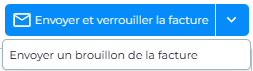
An invoice
You can send an invoice by email during invoice preparation or when previewing the invoice.
A batch of invoices
To batch send invoices that have already been completed and saved individually (regardless of the customers)
- Go to the Invoicing menu
- Select "Invoice List"
- Select the invoices to email using the checkbox to the left of the date
- Click the Send button
- Confirm sending; a confirmation will display in the bottom corner of the screen.
A statement of account
Account statements can be sent directly from Sigabill.
- Go to the Reports menu
- Select "Account statements"
- Select the desired account statement(s)
- Click on the Send button
Video clip
The clips are only available in French
💡How do I send my invoices by email?
💡How do I send a batch of invoices by email?
💡How do I create an email template?
 Sigabill is an application developed by SIGA Informatique 2000 inc,