
Add a receipt
Receipts are added by customer. Receipts must be linked to an invoice (locked or unlocked). A receipt must be included in a deposit for import to SigaFinance evo to be available. Automatic receipt deposits can be configured to reduce user workload.
There are several ways to add a receipt:
- While preparing the invoice (before or after printing it)
- Through the receipts list
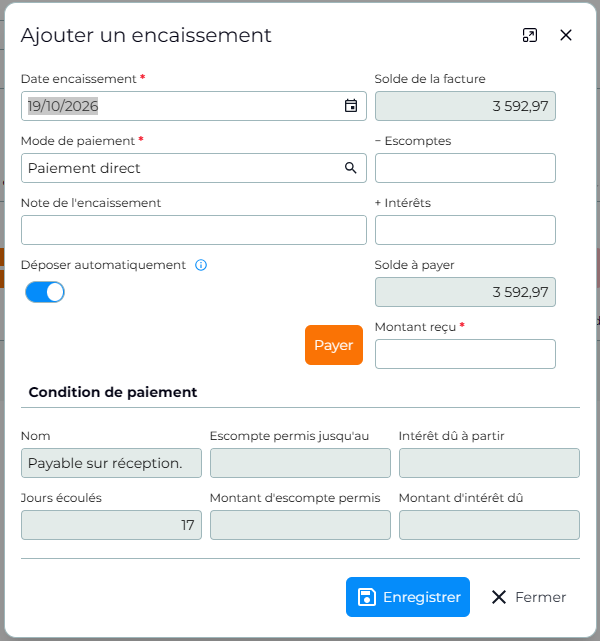
Add a receipt to the invoice
- In the invoice, click on the tab Receipt
- Click on the button Add
- Complete the receipt information
- Save
Add a receipt through the Receipts List
Adding a receipt is possible using the following shortcut button:

- Go to the menu Billing
- Select the item "Receipt listClick on the button
- AddComplete the receipt
- Choose the relevant
- customer; only customers with a Balance due will be displayed in the listEnter the date of the receipt (if no date is entered, invoices for this customer will not be displayed)
- Enter the
- amount receivedSelect the
- payment methodIf needed, enter a note for this receipt (check number, confirmation number, etc.).
- Apply the amount received to each invoice to be paid using the "Process receipt" button. The button
- "Process receipt for all invoices" allows you to process all unpaid invoices for the customer in a single click.The Discounts and Interest columns can be filled in as needed
- Check that the
- Balance to distribute is at $0. If the balance is not at $0, it will be impossible to save the receipt.Save.
- Depending on the payment method selected, an automatic deposit can be made. Otherwise, you will need to add a deposit so that receipts are considered deposited and available for import into SigaFinance EVO.
The Payments column displays a total of applied payments as well as the number of paid invoices.
💡Video clip - How to add a receipt?
The clip is only available in French
❓Frequently asked questions
Why don't I see all customers when I add a receipt?
The customers displayed in the list are those who have a balance due on the specified work date.
I want my receipt to be deposited automatically, but the button is not available. Why?
Automatic deposit of receipts is available for certain payment methods only, such as: Direct payment, Internet, Interac e-Transfer, Mobile deposit. To automatically deposit receipts by default, you must enable the following setting: General Settings → Receipts Section → Automatically deposit according to payment type
Why don't I see my receipts in the EVO bank reconciliation?
Receipts must be considered "deposited" to be available for import into SigaFinance EVO. To check the status of receipts, go to the Receipts List and check if the "Deposited" box is checked. If the box is not checked, the receipt has not been deposited (included in a deposit or automatically deposited).
How do I record advance payments received from my customers?
Receipts must be linked to an invoice (locked or unlocked). To account for advance payments from customers, it is suggested to follow the workflow described in the article "Receipt of advance payment".
 Sigabill is an application developed by SIGA Informatique 2000 inc,